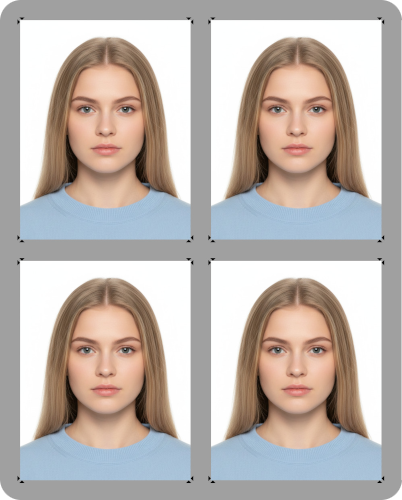
US Visa DS-160 Photo Upload Tool Errors: Crop, Pixels, and Fixes (2026)
Fix 2026 CEAC DS-160 & DS-260 (ceac.state.gov) US visa photo upload errors: 600×600–1200×1200 px, ≤240 KB JPEG compression, illumination & crop tool fixes.
Table of Contents
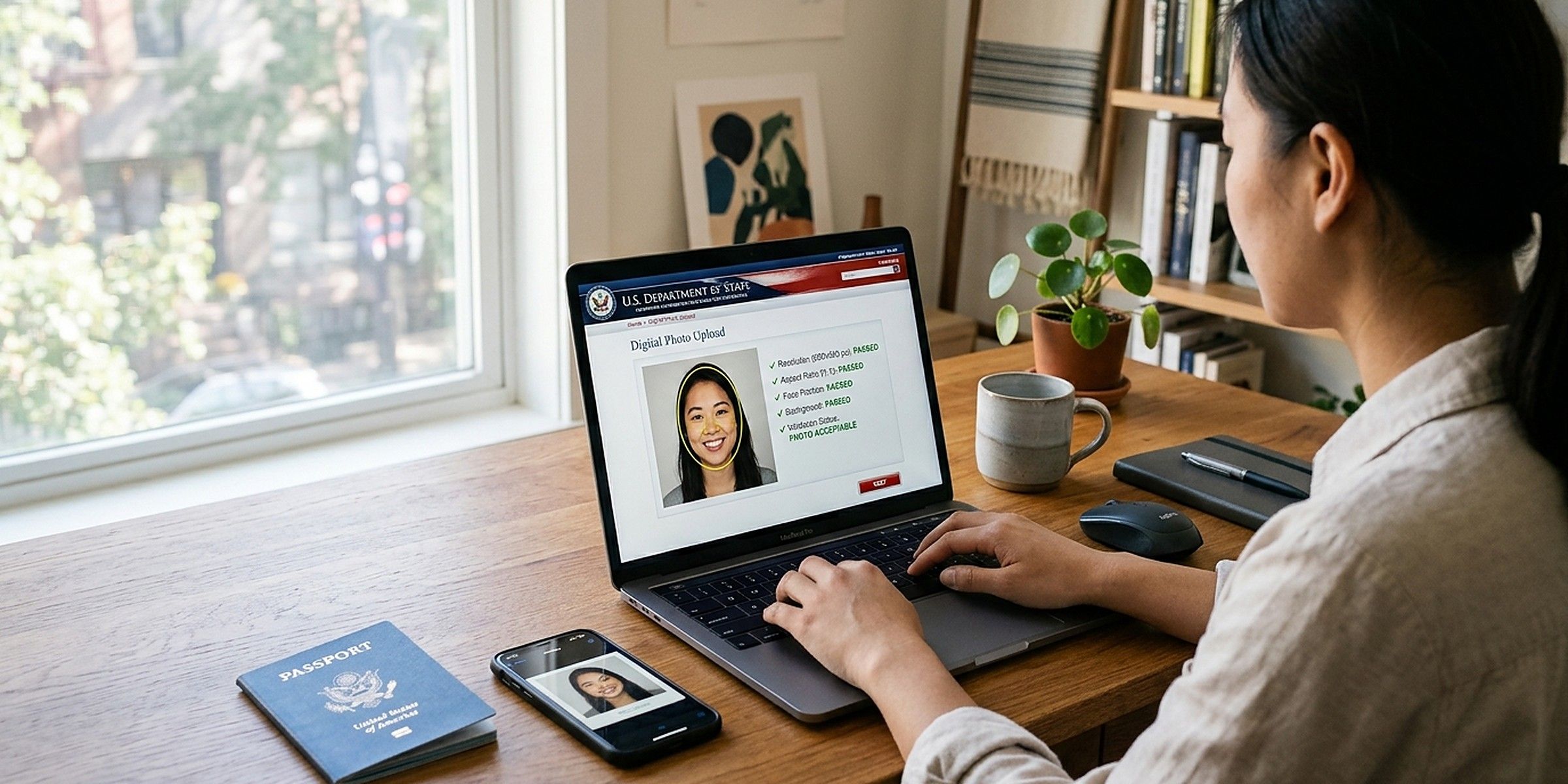
To pass the U.S. Department of State CEAC Form DS-160 and DS-260 (ceac.state.gov) photo quality check in 2026, your digital upload must be a 1:1 square baseline JPEG (.jpg) measuring 600 × 600 pixels minimum to 1200 × 1200 pixels maximum, weighing 240 KB or less (compression ratio ≤ 20:1) in 24-bit sRGB color with a 50% to 69% head height on a pure white (#FFFFFF) background. Generating a pre-calibrated US visa photo or US passport photo before logging into CEAC prevents "Photo is overly compressed" and "Illumination appears to be poor" errors on the first try.
- The Strict 240 KB Ceiling: Unlike U.S. passport renewals on MyTravelGov (which accept up to
10 MB), the CEAC visa portal (ceac.state.gov) hard-caps uploads at ≤ 240 KB while rejecting files compressed more than 20:1. - Why 600 × 600 px Beats 1200 × 1200 px: Exporting at 600 × 600 pixels (
82%–90%JPEG quality,100–210 KB) avoids the macroblock artifacts that trigger CEAC's "Photo is overly compressed" rejection when shrinking a1200 × 1200 pxcanvas under240 KB. - Never Use the State Dept Manual Cropper: The legacy online photo cropping tool frequently distorts aspect ratios, over-compresses JPEGs, and causes CEAC session timeouts. Always upload a ready-made
600 × 600 pxsquare file directly. - Always Print a 4×6" Backup Sheet: Even if CEAC accepts your digital upload, you must bring physical 2 × 2 inch (51 × 51 mm) prints if your confirmation page shows an
"X", if you apply for an immigrant visa (DS-260), or if your consulate/VAC scans physical photos at intake.
1. Official 2026 CEAC DS-160 & DS-260 Digital Photo Specifications
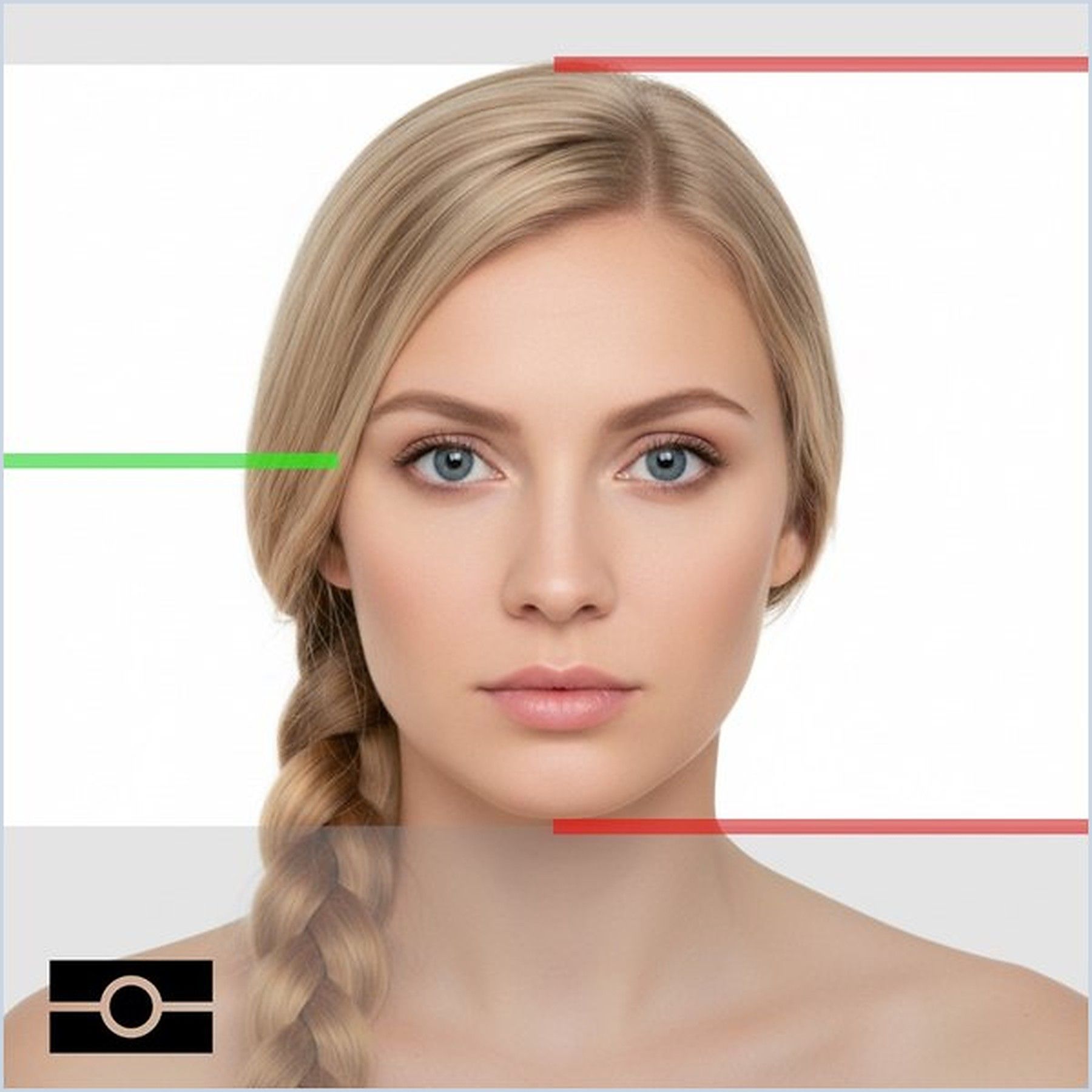
The U.S. Department of State Consular Electronic Application Center (ceac.state.gov) requires a 1:1 square digital JPEG between 600 × 600 and 1200 × 1200 pixels in 24-bit sRGB color, weighing no more than 240 KB with a head height of 50% to 69% (1 to 1⅜ inches) and eye level between 56% and 69% from the bottom edge.
Whether you are submitting Form DS-160 for a nonimmigrant visa (B1/B2 tourist/business, F-1/M-1 student, J-1 exchange visitor, H-1B/L-1/O-1 work, or K-1 fiancé) or Form DS-260 for an immigrant Green Card visa through the Official U.S. Department of State CEAC DS-160 Portal (ceac.state.gov), your digital portrait must pass an automated biometric quality pre-checker before you can sign and generate your barcoded confirmation page. The table below compares the exact 2026 CEAC validator thresholds against U.S. passport renewal rules and Snap4ID's calibrated output:
| Biometric / File Parameter | CEAC Form DS-160 & DS-260 (ceac.state.gov) | MyTravelGov Passport Renewal (Comparison) | Snap4ID US Visa Calibrated Output |
|---|---|---|---|
| Exact Pixel Dimensions | 600 × 600 px min to 1200 × 1200 px max | 600 × 600 px min to 1200 × 1200 px max | Calibrated 600 × 600 px (300 DPI) digital + 4×6" print sheet |
| Aspect Ratio Tolerance | Strict 1:1 square (width must equal height to the exact pixel) | Strict 1:1 square | Locked 1.000:1 square (600 × 600 px) |
| Maximum File Weight | ≤ 240 KB (240 kilobytes hard ceiling) | 54 KB minimum to 10 MB maximum | Optimized 100 KB – 210 KB (never exceeds 240 KB) |
| JPEG Compression Ratio | ≤ 20:1 maximum compression (no macroblock artifacts) | Low compression (≥ 54 KB floor) | High-fidelity 8:1 – 12:1 ratio (85% JPEG quality) |
| File Format & Color Space | Baseline .JPG / .JPEG in 24-bit sRGB color | Baseline .JPG / .JPEG in 24-bit sRGB color | Standard 24-bit sRGB baseline .JPG |
| Head Height (Chin to Crown) | 50% – 69% of image height (300–414 px at 600 px / 1–1⅜") | 50% – 68.75% of image height (1–1⅜") | Targeted to 67.5% via 478 biometric points |
| Eye Height (From Bottom) | 56% – 69% from bottom edge (336–414 px at 600 px / 1⅛–1⅜") | 56.25% – 68.75% from bottom edge (1⅛–1⅜") | Centered at 62.5% from bottom edge |
| Background, Glasses & Age | Plain white (#FFFFFF) or off-white; zero glasses; < 6 months old | Plain white (#FFFFFF); zero glasses; < 6 months old | Pure #FFFFFF white backdrop; pre-checked for compliance |
Why CEAC Rejects Files Over 240 KB (And What the 20:1 Compression Ratio Means)
The CEAC DS-160 uploader immediately rejects any file larger than 240 KB because the consular database was engineered to transmit visa records rapidly over low-bandwidth diplomatic links to more than 200 U.S. Embassies and Consulates worldwide. At the same time, its validator rejects files compressed at a ratio higher than 20:1.
This creates a classic catch-22 for applicants who are used to modern cloud portals. As we explain in our guide to MyTravelGov online passport renewal photo upload rules, the U.S. citizen passport portal accepts high-resolution files up to 10 MB. If you take that same 450 KB or 1.2 MB digital passport photo and upload it to ceac.state.gov, CEAC blocks it for exceeding 240 KB. Conversely, if you use a generic online file compressor to crush a large photo down to 30 KB, the JPEG algorithm groups 8 × 8 pixel blocks together, creating boxy compression artifacts around your eyelids and pupils that fail CEAC's 20:1 compression check.
600×600 px vs. 1200×1200 px: Why 600×600 px Is the Secret to Passing CEAC on the First Try
To stay safely under the 240 KB limit without exceeding the 20:1 compression ratio, you should always export your DS-160 digital visa photo at exactly 600 × 600 pixels rather than 1200 × 1200 pixels. At 600 × 600 pixels, a high-quality JPEG sits naturally between 100 KB and 210 KB.
Here is the exact math behind why 600 × 600 px works every time:
- At
600 × 600 pixels(24-bitsRGB): The uncompressed bitmap data equals600 × 600 × 3 bytes = 1,080,000 bytes(~1,055 KB). When saved as a baseline JPEG at85%quality, the file weighs roughly 120 KB to 180 KB—representing a gentle6:1 to 9:1compression ratio with razor-sharp facial detail and plenty of room below the240 KBceiling. - At
1200 × 1200 pixels(24-bitsRGB): The uncompressed bitmap data equals1200 × 1200 × 3 bytes = 4,320,000 bytes(~4,218 KB). To force a4,218 KBraw image under240 KB, you must compress it by at least18:1 to 24:1(dropping JPEG quality below50%), which almost always triggers CEAC's "Photo is overly compressed" error!
2. How to Fix Every CEAC DS-160 Photo Upload Error Message
When the CEAC DS-160 photo quality checker rejects an upload, it displays a specific diagnostic failure—most commonly "File size exceeds 240 KB," "Photo is overly compressed," "Illumination appears to be poor," "Dimensions are not square," or "Subject pose is not front-facing." Each error maps to a concrete pixel or lighting threshold.
Use this 2026 CEAC troubleshooting matrix to identify your exact error message on ceac.state.gov and apply the corresponding fix:
| Exact CEAC DS-160 Error Message | Technical Root Cause | How to Fix It Instantly |
|---|---|---|
1. "File size exceeds 240 KB" (> 240 KB) | Uploading an uncropped smartphone photo (2–8 MB) or a 1200×1200 px studio file exported at 95%–100% JPEG quality (350–850 KB). | Resize the canvas to 600 × 600 px (300 DPI) and export as a baseline sRGB .JPG at 82%–88% quality (100–210 KB). Snap4ID's us-visa profile does this automatically. |
2. "Photo is overly compressed" (Compression > 20:1) | Sending the photo via WhatsApp/SMS (< 45 KB) or lowering JPEG quality below 50% on a 1200×1200 px image to squeeze it under 240 KB. | Start from the original camera file, set exact 600 × 600 px dimensions, and save at high JPEG quality so the file weighs 100 KB to 210 KB with zero block artifacts. |
| 3. "Illumination appears to be poor" / "Background is not uniform" | Left-to-right cheek brightness differs by > 15%, overhead lights cast dark shadows under the eyes/nose, or the wall is gray/beige (#E6E2D8) instead of #FFFFFF. | Stand facing a diffused daylight window for symmetrical lighting across both cheeks, and use Snap4ID to replace the household wall with uniform pure white (#FFFFFF). |
| 4. "Dimensions are not square" / "Outside 600×600 to 1200×1200" | Uploading a rectangular 4:3 phone photo, a European 35×45 mm (7:9) crop, or an off-by-one 600×601 px manual crop. | Pre-crop your portrait to an exact 1:1 square (600 × 600 px) with 478 biometric points verified before uploading to CEAC. |
| 5. "Subject pose is not front-facing" / "Head size too large or small" | Close-up arm's-length selfie causing wide-angle distortion, head exceeds 69% (> 414 px) or falls under 50% (< 300 px) of the 600 px height. | Have someone take the photo from 5–6 feet away at eye level and let Snap4ID lock head height to 67.5% (1–1⅜") and eye level to 62.5%. |
| 6. Blank Screen / "Session Timed Out" During Photo Upload | Spending > 15 minutes inside CEAC's legacy manual cropping popup, or Safari/ad-blocker blocking the ASP.NET postback script. | Click "Save Application to File" (.dat) before the photo step, use Chrome or Edge with popups allowed, and upload a pre-sized 600×600 px JPEG directly without opening the cropper. |
Fixing "Photo Is Overly Compressed" & "File Size Exceeds 240 KB"
To resolve both "Photo is overly compressed" and "File size exceeds 240 KB" simultaneously, never re-save an already compressed WhatsApp image and never use a 1200 × 1200 pixel canvas. Instead, generate a clean 600 × 600 pixel baseline JPEG from your original camera file weighing between 100 KB and 210 KB.
In addition to pixel count and compression, check your file's color profile. According to the U.S. Department of State Official Visa Photo Requirements, digital visa images must use 24-bit sRGB color (8 bits per red, green, and blue channel). Newer iPhones shoot in Apple's .HEIC format using the wide-gamut Display P3 color profile. If you convert a Display P3 image without embedding standard sRGB, or if you export a progressive JPEG instead of a baseline JPEG, CEAC's legacy image parser may misread the file header and reject the upload.
Fixing "Illumination Appears to Be Poor" & "Background Is Not Uniform"
CEAC triggers "Illumination appears to be poor" whenever a side lamp or window illuminates one half of your face while leaving the opposite cheek in shadow, or when overhead room lighting creates dark crescents beneath your eyebrows, nose, and chin. Even front-facing daylight eliminates this error immediately.
The CEAC validator divides your face along the vertical bridge of your nose and compares the average pixel luminance of the left cheek, temple, and eye socket against the right side. If the brightness discrepancy exceeds roughly 15%, or if shadows fall onto the wall behind your ears, the upload fails. As covered in our visual guide to DOs and DON'Ts on a US passport photo, standing 3 feet in front of a wall while directly facing a daytime window balances your facial lighting while Snap4ID replaces the background with uniform #FFFFFF white (RGB 255, 255, 255).
Fixing "Subject Pose Is Not Front-Facing" & "Dimensions Are Not Square"
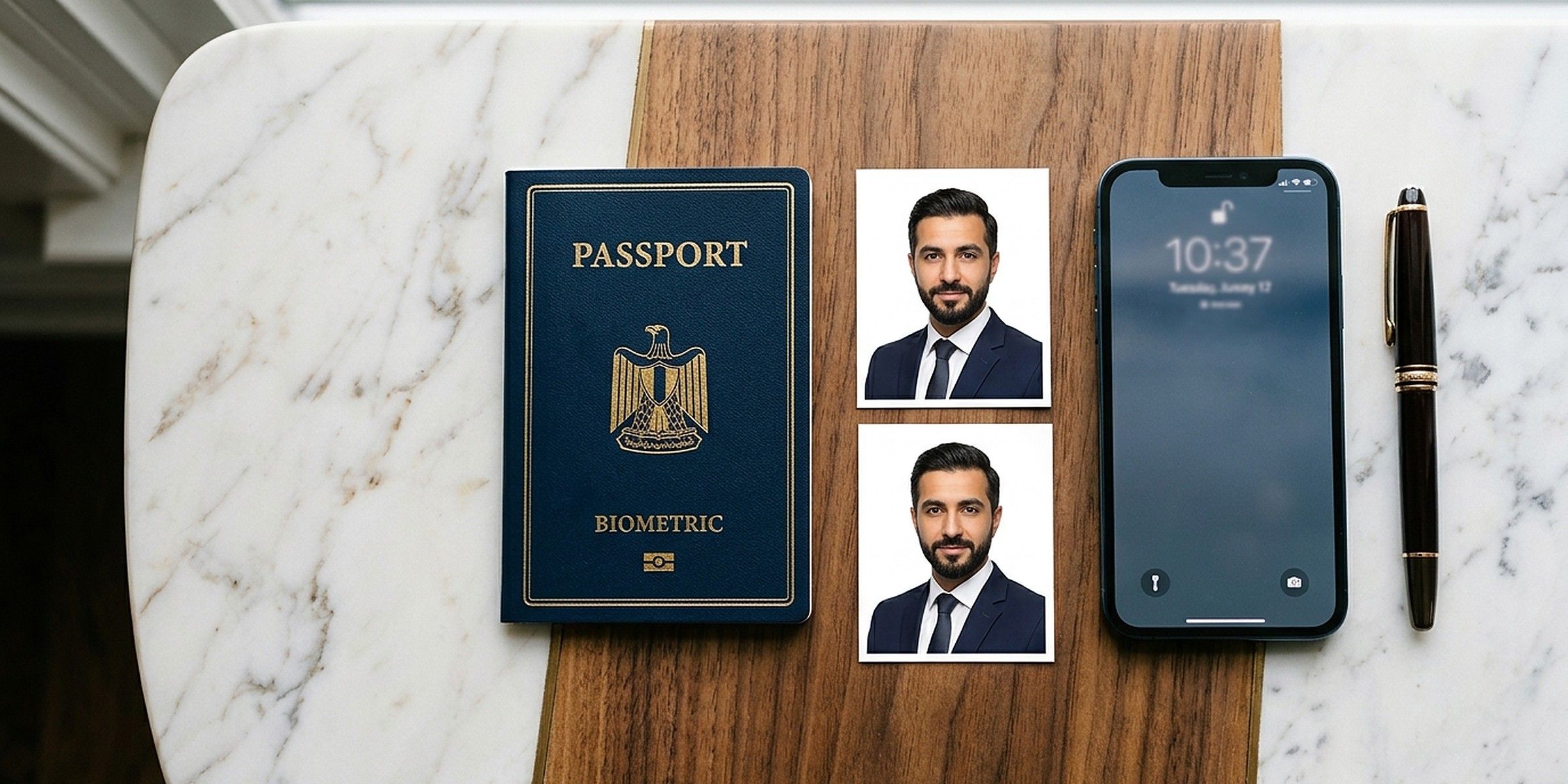
If CEAC flags your pose or head proportions, your photo was likely cropped too tightly around your chin and forehead or taken as a close-up handheld selfie. In a compliant 600 × 600 pixel visa portrait, your head must measure 300 to 414 pixels tall (50% to 69%) with visible upper shoulders.
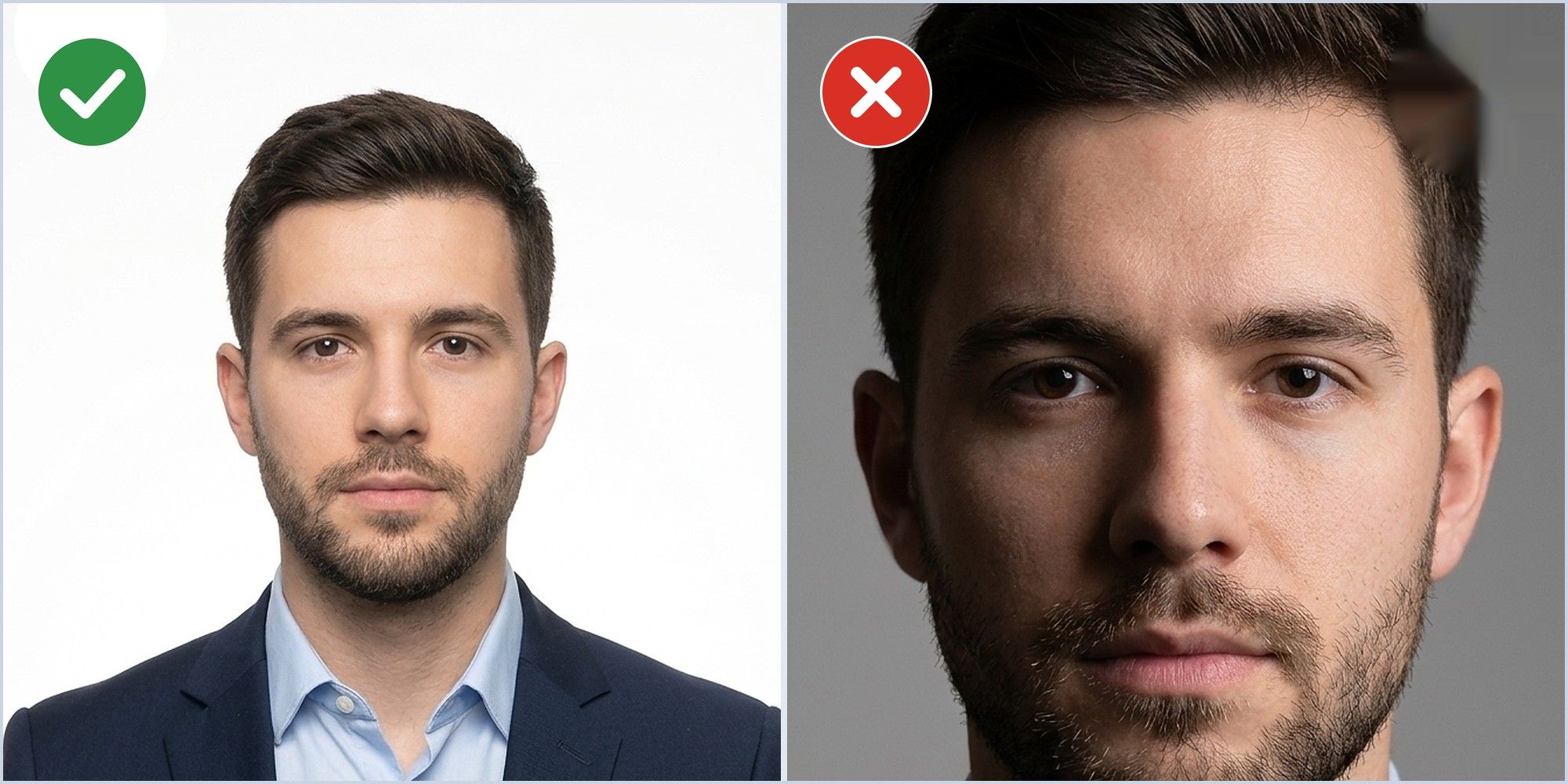
✓ DO: Compliant CEAC DS-160 Upload
- Exact 600 × 600 px Square JPEG: Exported in 24-bit
sRGBcolor weighing100 KB to 210 KB(safely under the240 KBlimit and≤ 20:1compression). - 50%–69% Head Height with Shoulders: Crown-to-chin height occupies
300–414 px(1–1⅜") with clear headroom above the hair and upper shoulders visible. - Symmetrical Front Illumination: Even daylight across both cheeks and eye sockets against a pure
#FFFFFFwhite background with zero shadows. - Recent & Eyewear-Free: Taken within the last 6 months with both eyes open, neutral expression, and zero eyeglasses.
✗ DON'T: Common CEAC Rejection Triggers
- Over-Cropped Close-Up Framing: Cropping tightly around the chin and hair so the head exceeds
69%of the frame height and cuts off the shoulders. - Heavy JPEG Compression Artifacts: Shrinking a file below
45 KBvia WhatsApp or saving a1200×1200 pximage at low quality (> 20:1compression). - Harsh Side Shadows & Gray Walls: Uneven room lighting casting dark shadows across one half of the face or onto an off-white/gray background wall.
- Files Over 240 KB or Non-Square Crops: Uploading raw
3 MBcamera files,35×45 mmSchengen crops, or.HEIC/.PNGformats.
3. Counter-Intuitive Trap: Why the State Department's Manual Photo Cropping Tool Causes Rejections
You should avoid using the U.S. Department of State's built-in manual photo cropping tool because dragging the green alignment ovals by hand frequently distorts facial proportions, exports heavily compressed JPEGs that fail CEAC's own 20:1 compression check, and triggers browser session timeouts on ceac.state.gov.
Counter-Intuitive CEAC Trap #1 — Why the Official Manual Cropper Tool Fails Its Own Validator: Originally built during the Adobe Flash era and later patched into a basic browser widget, the State Department's free cropping tool asks you to manually scale and drag two green octagons/ovals over your head and eyes. Because it does not remove household wall shadows, does not normalize lighting across your cheeks, and applies aggressive client-side JPEG re-compression when exporting, thousands of applicants find that a photo cropped inside the State Department's own widget is immediately rejected by ceac.state.gov with "Photo is overly compressed" or "Illumination appears to be poor."
Manual Oval Dragging vs. Automated 478-Point Biometric Calibration
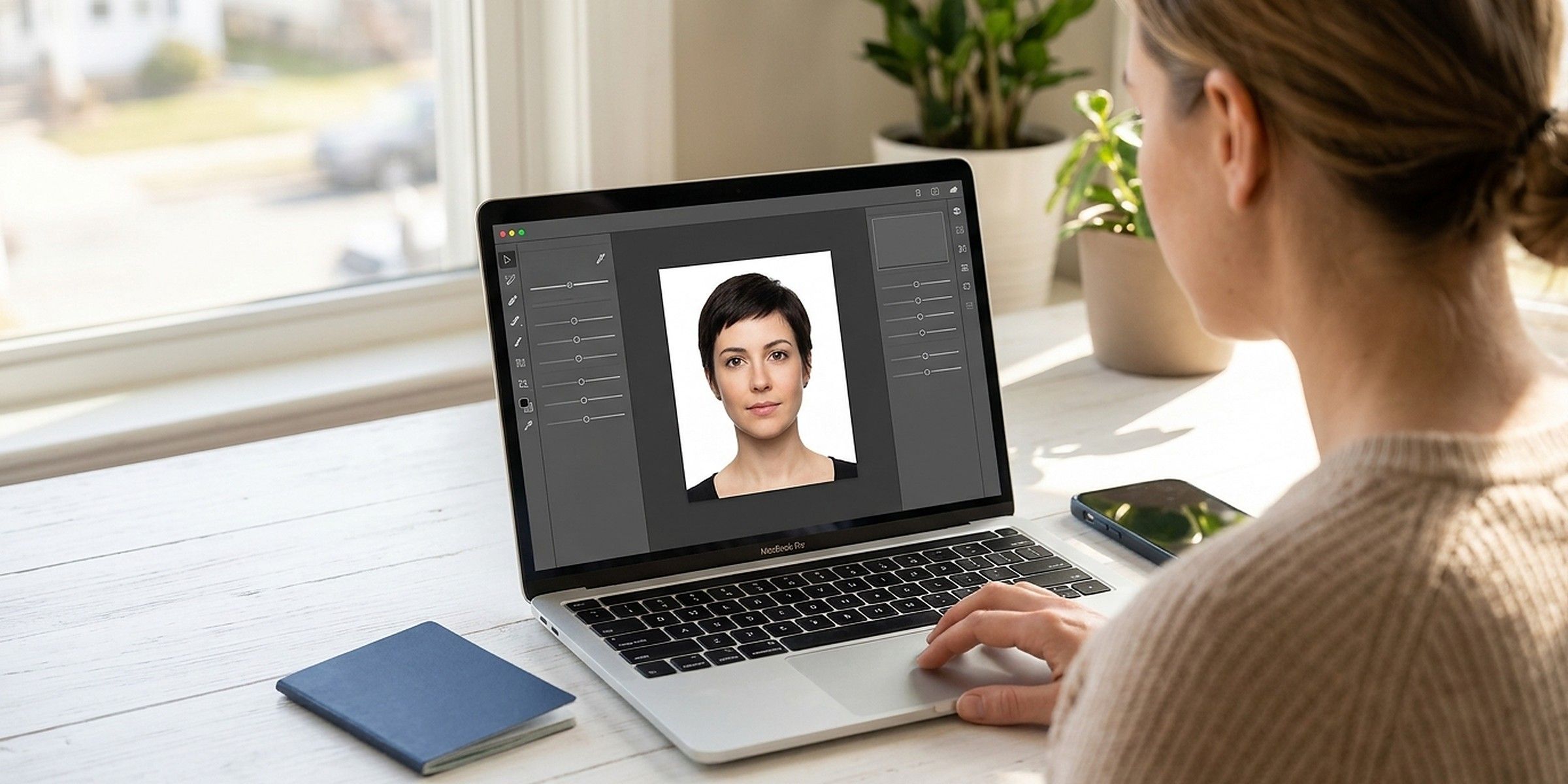
Instead of eyeballing green ovals in a browser popup, Snap4ID uses computer vision to detect and measure 478 biometric points across your facial geometry, automatically producing a ready-to-upload 600 × 600 pixel JPEG under 240 KB backed by our 100% acceptance guarantee.
When you upload any smartphone portrait to Snap4ID's US Visa Photo tool, our engine executes four precision steps automatically:
- 478 Biometric Points Landmark Verification: We map 478 biometric points across your cranial crown, chin, pupils, ear tragus, and jawline to verify that your head pose is straight and front-facing.
- Exact CEAC Mathematical Cropping: Your portrait is scaled onto a
600 × 600 px(1:1) canvas with head height locked to67.5%(inside the mandatory50%–69%window) and eye level positioned at62.5%from the bottom edge (inside the56%–69%window). - Pure
#FFFFFFBackground Without Facial Retouching: We replace shadowed walls with uniform pure white (#FFFFFF) while leaving 100% of your natural skin texture untouched. - Calibrated
≤ 240 KBBaselinesRGBExport: The file is encoded at an optimal100 KB – 210 KBbyte weight (< 12:1compression ratio) with a 100% acceptance guarantee (full money-back guarantee if rejected by CEAC or a U.S. Embassy).
How to Prevent CEAC Session Timeouts When Uploading Your DS-160 Photo
To prevent losing your DS-160 progress to a blank white screen or "Session Timed Out" error during the photo step, always click "Save Application to File" to download your backup .dat file and record your Application ID (e.g., AA00...) before clicking "Upload Your Photo."
The legacy ASP.NET session on ceac.state.gov expires after roughly 15 to 20 minutes of inactivity on the main form window—and time spent fighting the popup photo uploader often fails to reset the server timer. Use Google Chrome or Microsoft Edge on a desktop or laptop, disable strict popup blockers for *.state.gov, and upload your pre-calibrated 600 × 600 px JPEG directly so the step finishes in less than 15 seconds.
Stop fighting 240 KB compression errors and broken cropping tools. Snap4ID checks 478 biometric points, sets a shadow-free #FFFFFF background, and delivers a guaranteed 600 × 600 px (≤ 240 KB) JPEG plus a 4×6" backup print sheet with a 100% acceptance guarantee. Create Your US Visa Photo Now →
4. Do You Still Need a Printed 2×2 Inch Photo for Your U.S. Visa Interview or VAC Appointment?
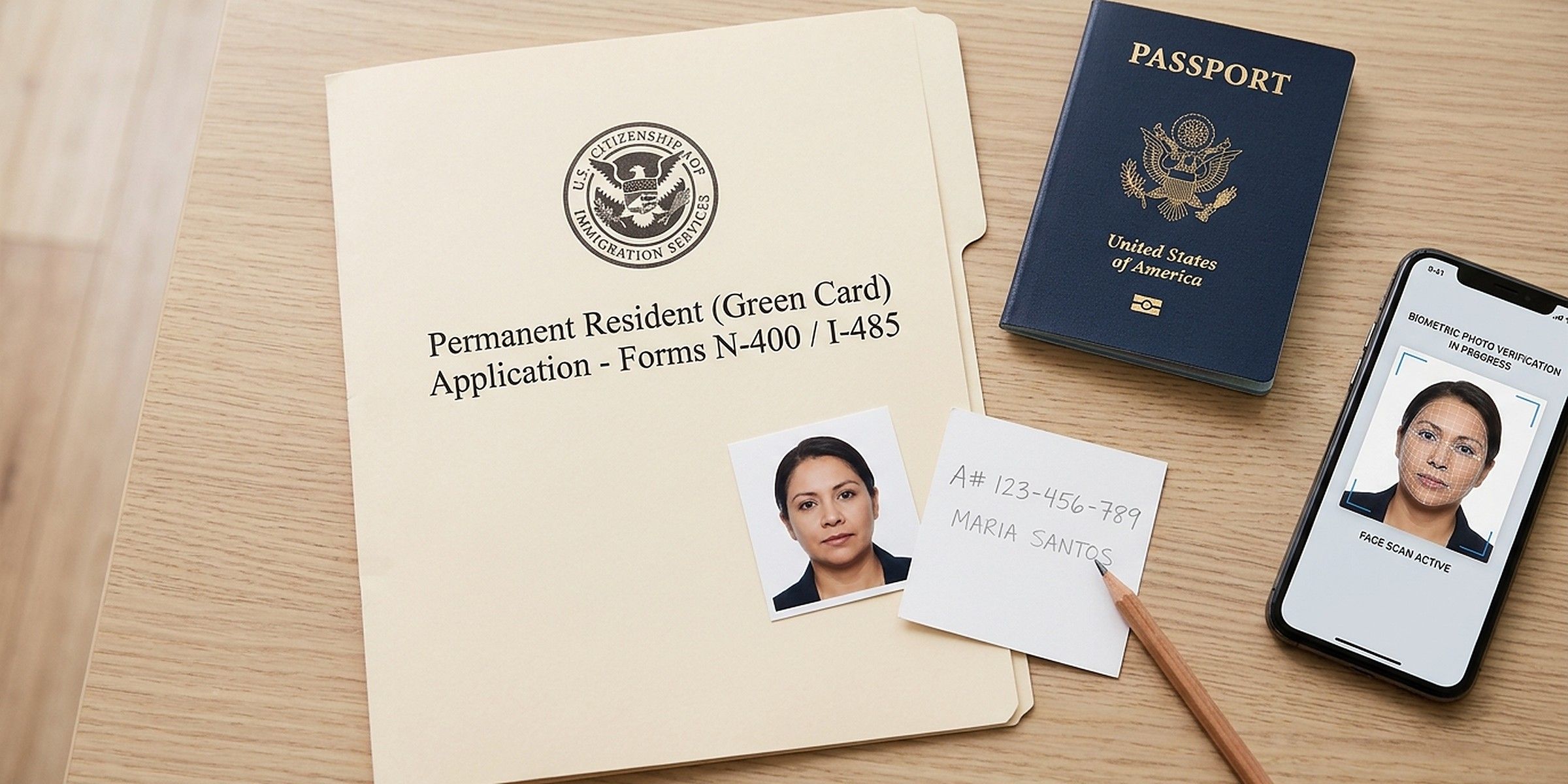
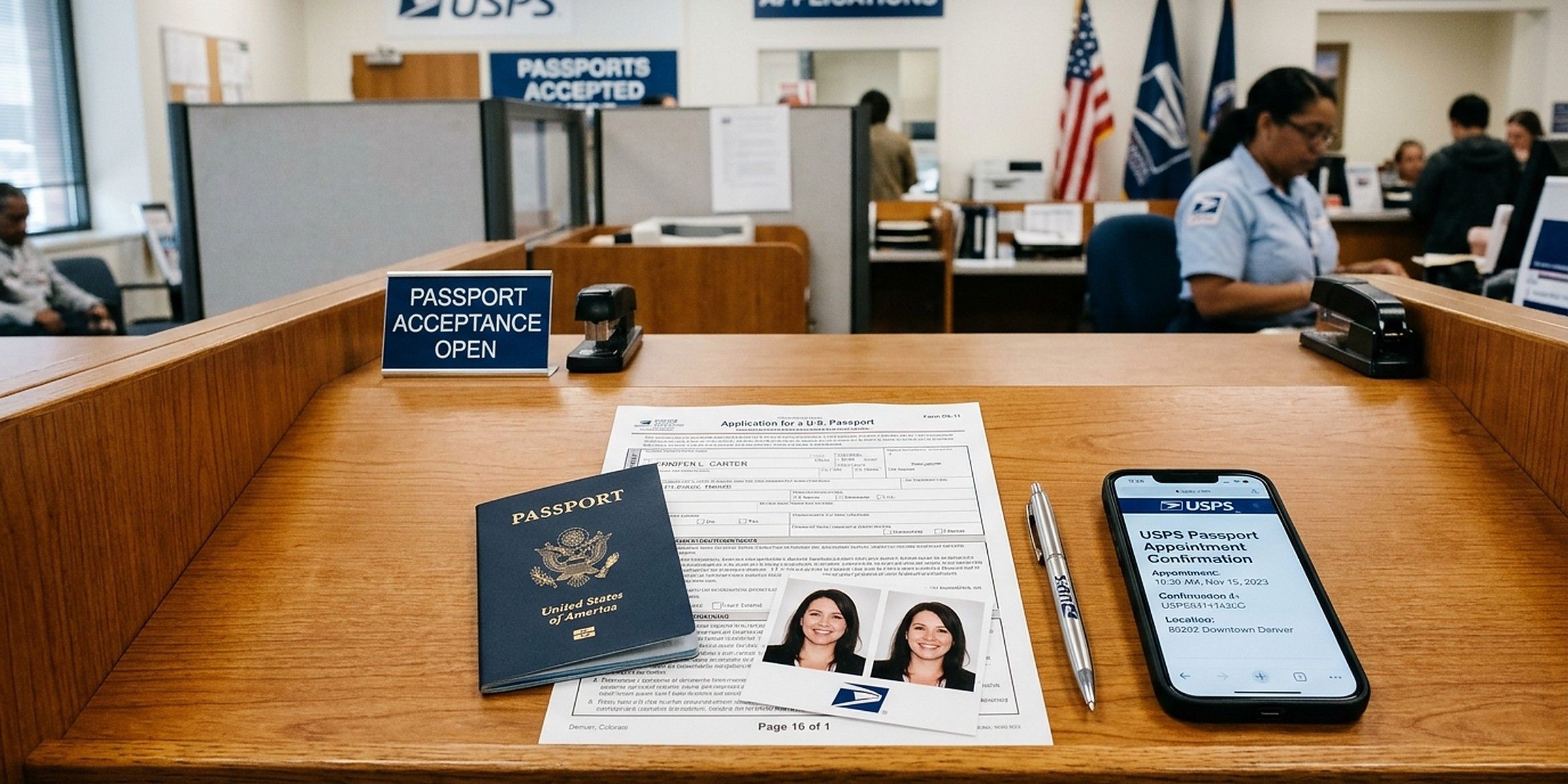
Yes, you should always bring two physical 2 × 2 inch (51 × 51 mm) printed photos to your Visa Application Center (VAC/OFC) and U.S. Embassy interview if CEAC allowed you to "Continue Without a Photo," if you are applying for an immigrant visa (DS-260) or K-1 visa, or as a backup against consular scanner glitches.
Why Your Photo Looks Pixelated on the DS-160 Confirmation Page (And When an "X" Appears)
If CEAC displayed the green "Photo passed quality standards" banner during upload, do not worry if your photo looks blurry or low-resolution on the printed DS-160 confirmation page. However, if the confirmation box shows an "X" or says "Photo will be taken at the ASC/Embassy," bringing a 2 × 2 inch print is mandatory.
Counter-Intuitive CEAC Trap #2 — The Blurry Confirmation Page Thumbnail vs. "Continue Without a Photo": When CEAC generates your final DS-160 PDF confirmation page, it downsamples your portrait into a tiny, heavily compressed preview thumbnail next to the barcode so the PDF prints quickly. Your actual 600 × 600 px file is stored at full clarity inside the Consular Consolidated Database (CCD). However, if your upload failed multiple times and you clicked "Continue Without a Photo," the confirmation page prints with an empty box instructing you to bring a physical 2 × 2 inch print to your intake window. Showing up without that print means being turned away to an overpriced street photo booth outside the embassy gates.
How to Print Backup 2×2 Visa Photos on a 4×6 Sheet for $0.25–$0.39
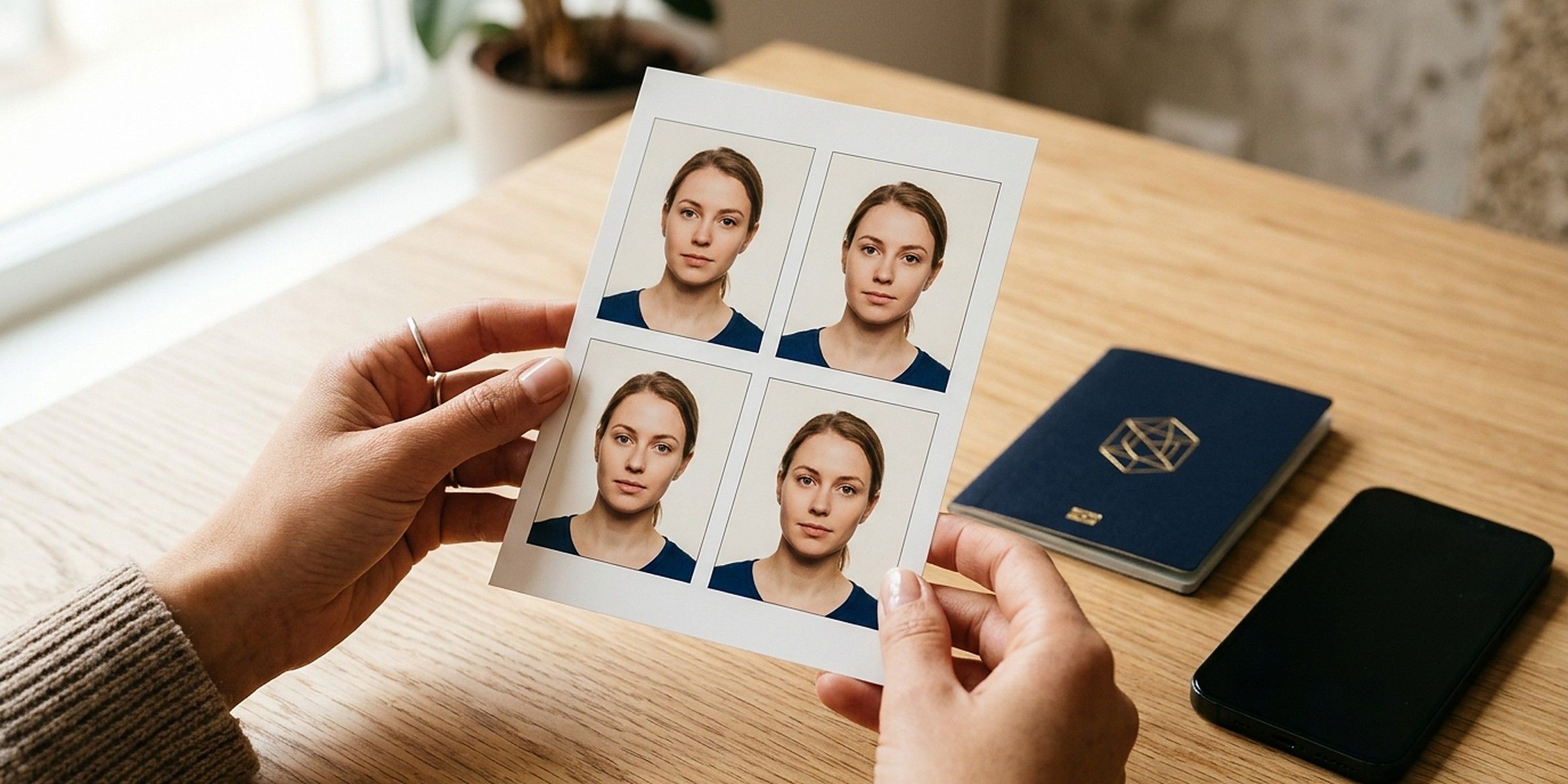
Because every Snap4ID order includes both the 600 × 600 px (≤ 240 KB) digital CEAC file and a calibrated 4 × 6 inch (10 × 15 cm) print sheet, you can print physical 2 × 2 inch backup visa photos at any pharmacy or photo kiosk for $0.25 to $0.39 instead of paying $16.99 at a retail counter.
5. The 6-Month Recency Rule: Avoiding a 221(g) Delay for Reusing an Old Passport Photo
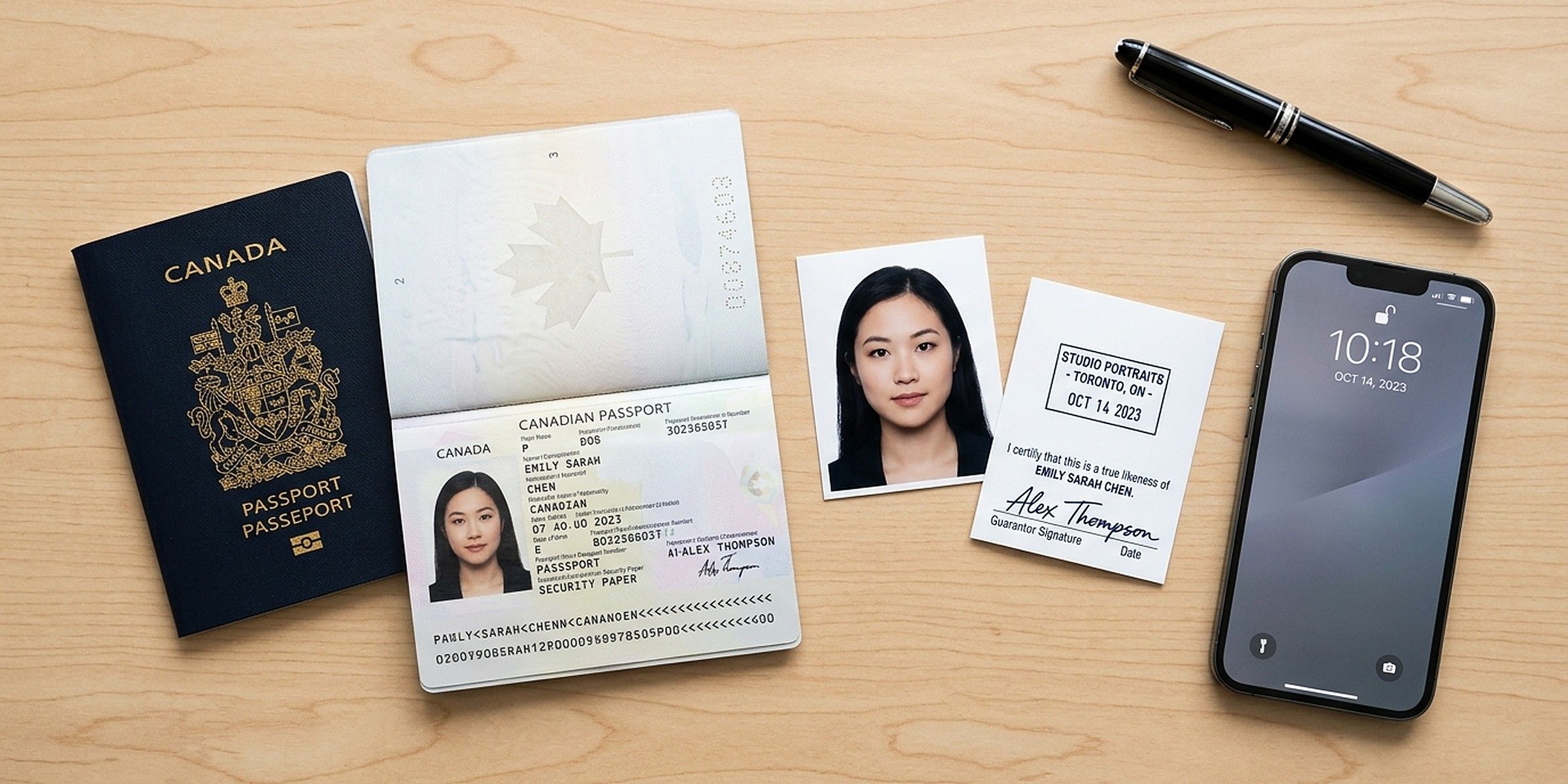
Never upload the same photo printed on your current passport or a previous U.S. visa if that document was issued more than 6 months ago. Consular officers compare your DS-160 photo directly against your passport bio-page and prior visa history, issuing a Section 221(g) refusal slip for outdated photos.
Counter-Intuitive CEAC Trap #3 — How Reusing Your Passport Photo Triggers a 221(g) Administrative Hold: Automated CEAC software cannot tell when a photo was taken if the EXIF date is stripped, so an old digital photo from a 3-year-old passport will easily pass the online upload check with a green checkmark. The trap snaps shut at the embassy interview window (or during Dropbox / Interview Waiver adjudication): the consular officer opens your passport, sees the identical photo on a passport issued 2 years ago, and is legally barred from issuing the visa until you submit a new 2 × 2 inch photo taken within the last 6 months. For Dropbox applicants, a 221(g) photo hold delays passport return by 2 to 4 weeks.
6. Step-by-Step: How to Take, Validate, and Upload Your DS-160 Visa Photo
Follow this five-step workflow to capture a compliant smartphone portrait at home, format it to CEAC's exact 600 × 600 pixel (≤ 240 KB) specification, and complete your Form DS-160 or DS-260 upload without errors:
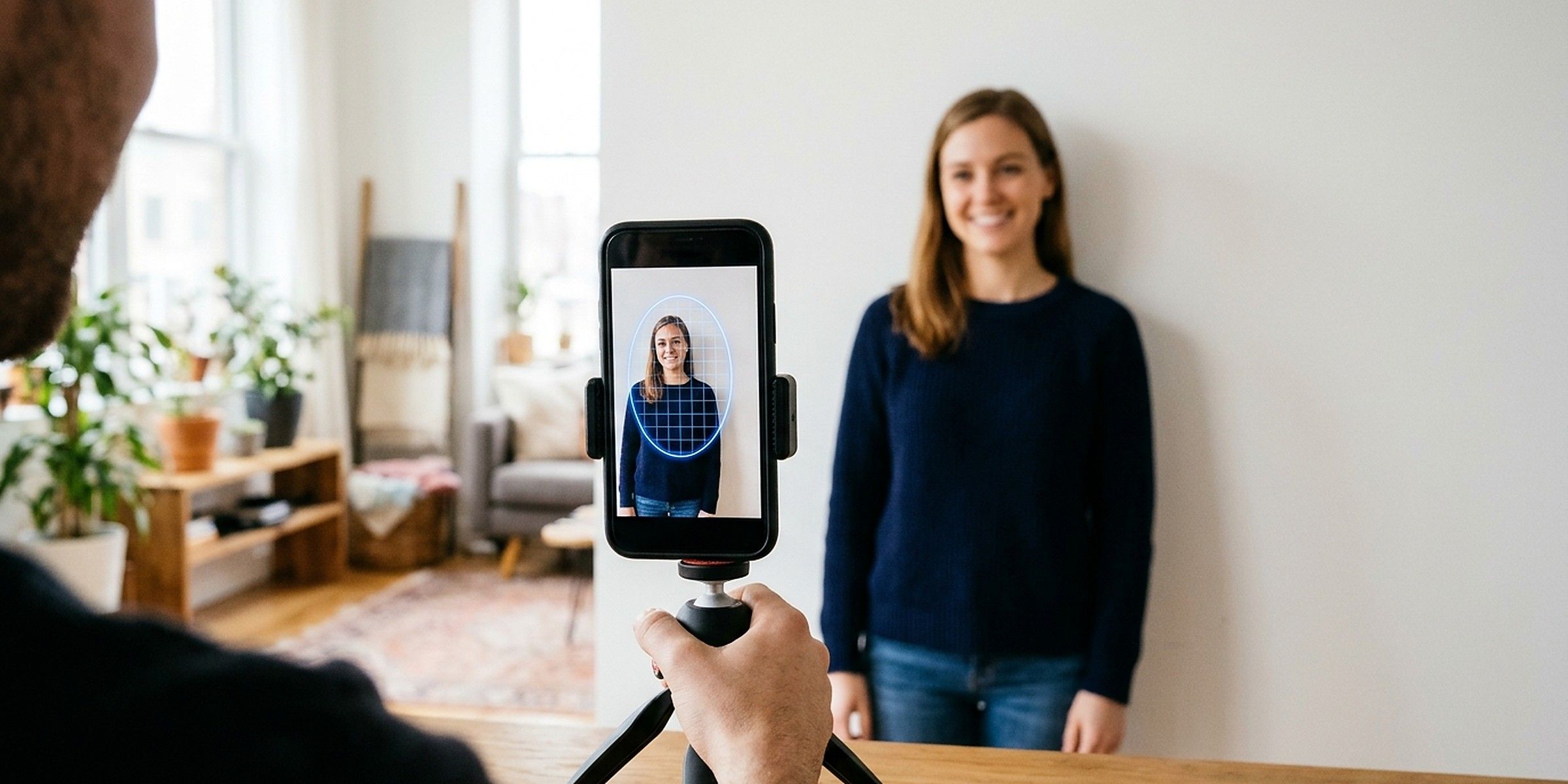
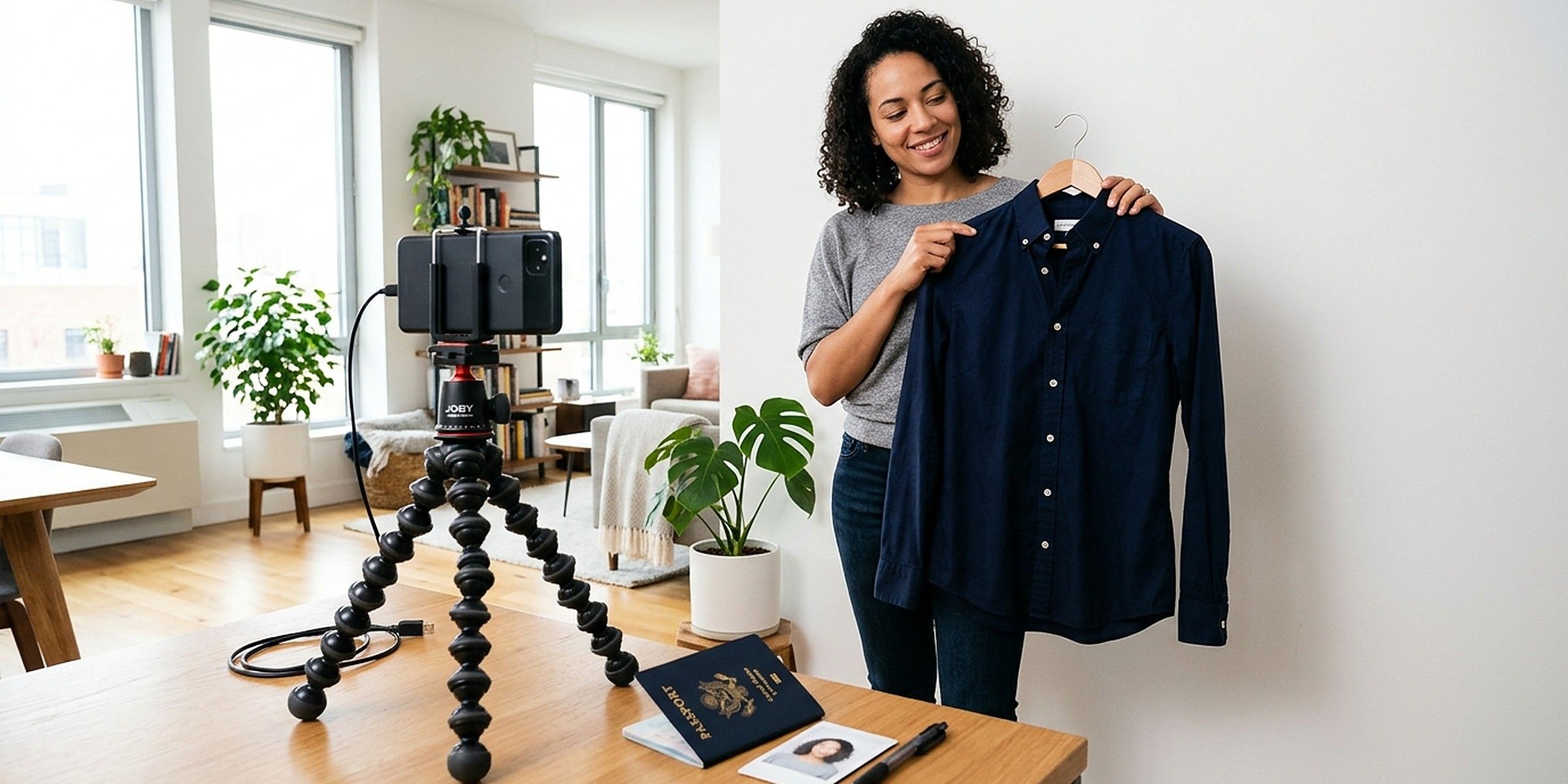
- Take a Daylight Portrait Without Glasses: Stand
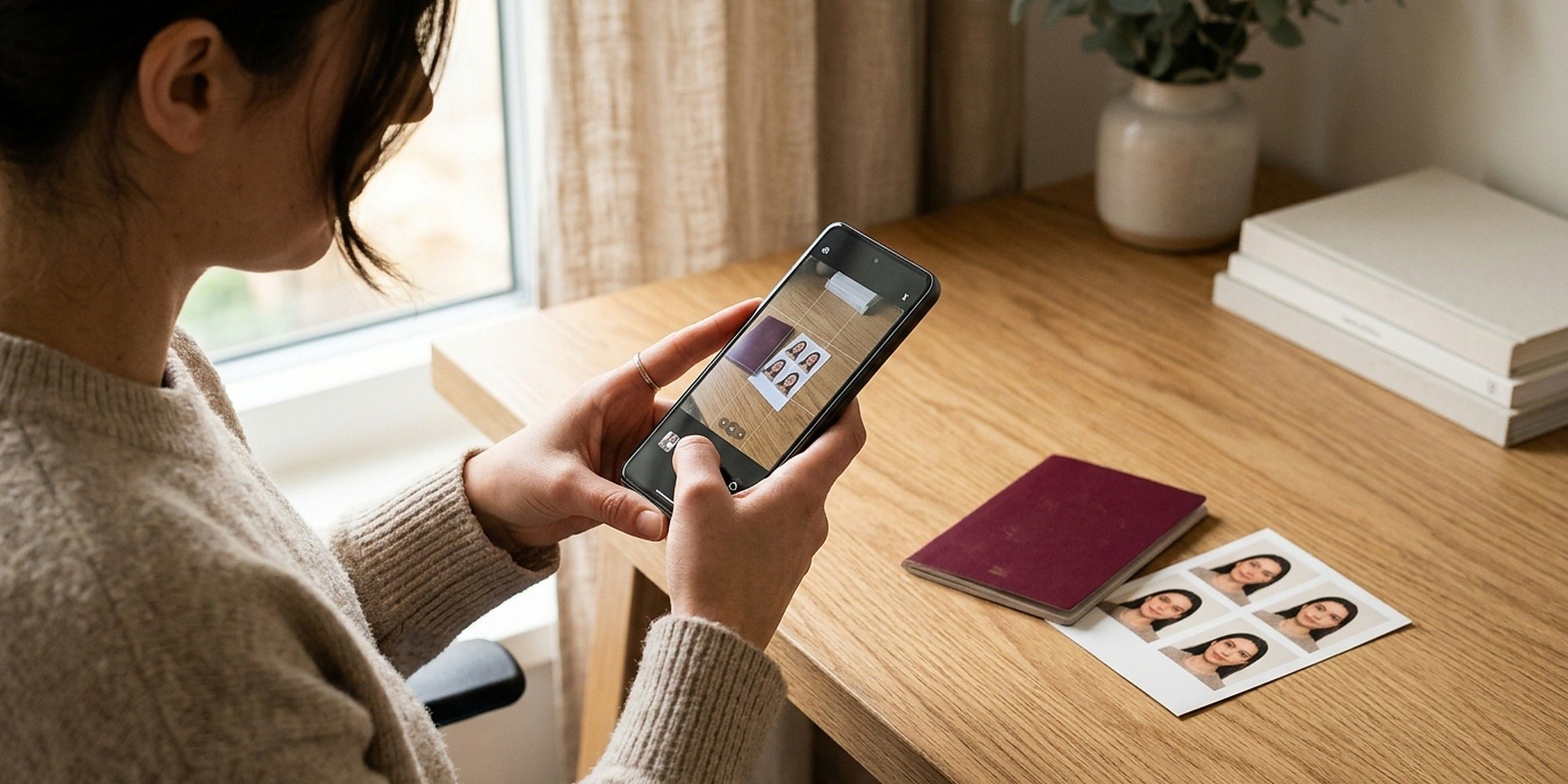
3 feetin front of any wall facing a bright window. Remove all eyeglasses, hats, hair accessories, and wireless earbuds. Have a friend or tripod hold the smartphone at eye level5 to 6 feetaway in standard Photo mode (never Portrait Mode). - Process with Snap4ID's US Visa Profile: Upload your photo at Snap4ID US Visa Photo. Our AI checks 478 biometric points, sets a uniform
#FFFFFFwhite background, and generates both a 600 × 600 px (100–210 KB) sRGB JPEG and a 4 × 6 inch print sheet. - Save Your DS-160 Application File First: Log into
ceac.state.gov, note your Application ID, and save your.datbackup file before opening the photo upload screen. - Upload the 600 × 600 px JPEG Directly (Skip the Cropper): Click "Upload Your Photo" → "Browse", select your downloaded Snap4ID
600 × 600 pxJPEG, and click "Upload Selected Photo." Do not open the manual cropping tool. - Verify the Green Checkmark & Print Two Backup 2×2 Photos: Confirm that CEAC displays "Photo passed quality standards," click "Next: Confirm Photo," and print your companion
4 × 6 inchsheet at a local pharmacy so you have two physical2 × 2 inchphotos in your interview folder.
Frequently Asked Questions (FAQ)
What are the exact pixel dimensions and file size limit for a DS-160 visa photo?
The CEAC Form DS-160 and DS-260 portal (ceac.state.gov) requires a 1:1 square digital JPEG (.jpg) measuring between 600 × 600 pixels minimum and 1200 × 1200 pixels maximum in 24-bit sRGB color, weighing 240 KB (240 kilobytes) or less with a compression ratio no greater than 20:1. Uploading a calibrated 600 × 600 pixel file between 100 KB and 210 KB guarantees instant acceptance without compression errors.
How do I fix the "Photo is overly compressed" error on CEAC DS-160?
You can fix the "Photo is overly compressed" error on CEAC DS-160 by resizing your canvas to exactly 600 × 600 pixels and exporting it at 82% to 90% JPEG quality so the file weighs 100 KB to 210 KB. Never save a 1200 × 1200 pixel image at low quality (< 50%) or send your photo through WhatsApp or SMS, which pushes the compression ratio past the 20:1 limit.
Why does the DS-160 photo tool say "Illumination appears to be poor"?
CEAC displays the "Illumination appears to be poor" or "Background is not uniform" warning when its validator detects a brightness difference greater than 15% between your left and right cheeks, dark shadows behind your neck, or an off-gray household wall. Retake your photo facing a bright window and use Snap4ID to set a pure #FFFFFF white background.
My photo uploaded to DS-160 looks blurry on the confirmation page—will it be rejected?
No, a blurry or slightly pixelated photo on your printed DS-160 barcode confirmation page will not cause a rejection if CEAC displayed the green "Photo passed quality standards" message during upload. The confirmation PDF renders a compressed low-DPI preview thumbnail, while the consular officer views your full-resolution 600 × 600 pixel file on their workstation.
What happens if CEAC rejects my photo and says "Continue without a photo"?
If the CEAC DS-160 portal rejects your digital upload and allows you to click "Continue Without a Photo," your confirmation page will print with a blank box stating that a photograph must be submitted in person. You must bring at least one compliant 2 × 2 inch (51 × 51 mm) printed color photo to your Visa Application Center (VAC/OFC) and U.S. Embassy interview.
Can I wear glasses or reuse my passport photo for my US visa DS-160 application?
No, you cannot wear eyeglasses of any kind in a U.S. visa photo, and you cannot reuse the photo from a passport or previous visa issued more than 6 months ago. Submitting a photo older than 6 months triggers a Section 221(g) administrative hold at the embassy window until you provide a newly captured 2 × 2 inch print.